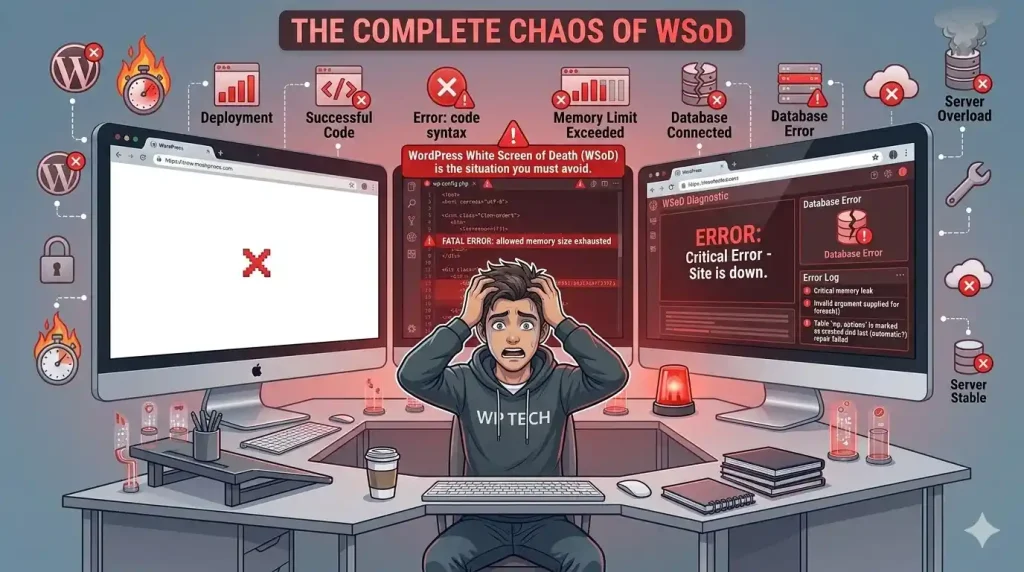
You open your site, and there’s nothing there. No error message, no broken layout — just a completely blank white page. Maybe the admin area still loads, maybe it doesn’t. Either way, your site is down and you have no idea why.
This is what people mean by the “White Screen of Death” — and despite the dramatic name, it’s almost always fixable. Here’s how to actually diagnose and resolve it.
What Causes It
The white screen happens when PHP encounters a fatal error but isn’t set up to display it. Instead of showing you the error message, WordPress just goes silent. That silence is frustrating, but the underlying cause is almost always one of three things:
- A plugin or theme update that went wrong. This is by far the most common cause. A plugin updates and conflicts with another plugin, or a theme update has a bug, and PHP throws a fatal error on every page load.
- A PHP memory limit that’s too low. WordPress and its plugins need memory to run. If a script exceeds the available memory, PHP will fail silently. This is especially common after installing a new plugin or moving to a host with tighter resource limits.
- A corrupted WordPress core file. Less common, but it happens — particularly after a botched auto-update or a server issue.
Step 1: Enable Debug Mode to See the Actual Error
The first thing to do is turn on WordPress debug mode so PHP errors get written to a log file instead of being swallowed silently.
Connect to your site via FTP or your hosting file manager and open wp-config.php. Find this line:
define( 'WP_DEBUG', false );Change it to:
define( 'WP_DEBUG', true );
define( 'WP_DEBUG_LOG', true );
define( 'WP_DEBUG_DISPLAY', false );
With these settings, errors will be written to a file called debug.log inside your wp-content folder. Reload the broken page, then check that file. The error message will tell you exactly which file and which plugin or theme is causing the problem.
Once you’ve fixed the issue, change WP_DEBUG back to false. You don’t want debug mode running on a live site permanently.
Step 2: Check If a Plugin Is Causing It
If you can still access your WordPress admin area, go to Plugins and deactivate them all. Reload your site. If it comes back, reactivate your plugins one by one, checking the site after each one, until it breaks again. That’s the culprit.
If you can’t access the admin area, you’ll need to do this via FTP. Go to wp-content/plugins/ and rename the entire plugins folder — change it to plugins-old or anything different. WordPress won’t find any plugins and will effectively deactivate all of them. If your site loads, rename the folder back to plugins, then go into the folder and rename individual plugin folders one at a time to isolate which one is breaking things.
Once you’ve found the problem plugin, you can either keep it deactivated and report the issue to the plugin developer, or find an alternative.
Step 3: Check Your Theme
If disabling plugins doesn’t fix it, the theme might be the problem. The quickest way to test this via FTP is to go to wp-content/themes/ and rename your active theme’s folder. WordPress will fall back to a default theme (like Twenty Twenty-Four). If your site loads with the default theme, the issue is in your theme files.
From there, check if a recent update changed something, look at the debug log for the specific file causing the error, or contact your theme developer.
Step 4: Increase the PHP Memory Limit
If your debug log shows a memory exhaustion error — something like Fatal error: Allowed memory size of X bytes exhausted — the fix is to increase the PHP memory limit.
Open your wp-config.php file and add this line before the /* That’s all, stop editing! */ comment:
define( 'WP_MEMORY_LIMIT', '256M' );If that doesn’t work, you may need to increase the limit at the server level. This is done through your hosting control panel, or by editing your .htaccess or php.ini file. Your hosting support can usually walk you through this if you’re not sure.
Step 5: Re-upload WordPress Core Files
If you’ve ruled out plugins and themes and the memory limit isn’t the issue, a corrupted core file might be to blame.
Download a fresh copy of WordPress from wordpress.org. Extract it, and re-upload the wp-admin and wp-includes folders to your server, overwriting the existing ones. Do not delete anything else — just replace those two folders.
Do not touch the wp-content folder. That’s where all your plugins, themes, and uploads live, and you don’t want to overwrite it.
The Most Common Scenario I See
Nine times out of ten, when someone contacts me about a white screen, it’s a plugin update that went sideways. The pattern is always the same: the site was fine, they (or their automated maintenance tool) ran updates, and then the white screen appeared.
This is exactly why I test updates on a staging copy of a site before pushing them live. A five-minute check on staging catches this kind of problem before it affects real visitors. If you’re running updates directly on your live site without any staging or rollback process, a white screen is eventually going to happen — it’s just a matter of when.
The good news is that once you know the process — enable debug mode, isolate the plugin or theme, fix or replace it — it stops being scary. The white screen looks catastrophic but it’s almost always resolved within 20-30 minutes if you know what you’re doing.
If you’re stuck and can’t work out what’s causing it, feel free to get in touch. It’s usually a quick fix once you can see the actual error.