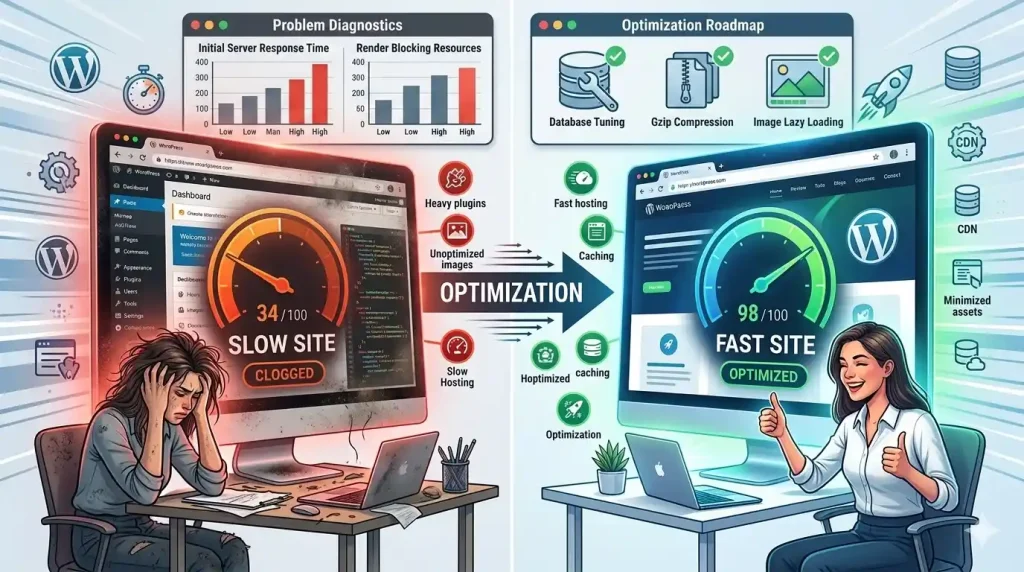
Most people who come to me about a slow WordPress site have already tried the obvious things. They’ve installed a caching plugin, maybe run their URL through GTmetrix, seen a bunch of red and orange scores, and had no idea what to do next.
The problem is that WordPress performance is not a single problem with a single fix. It’s usually four or five different problems stacked on top of each other — and each one needs to be addressed in the right order.
Here’s what I actually look at when a client’s site is loading slowly.
Start With Your Hosting — Because Nothing Else Matters If This Is Wrong
I’ll be blunt: cheap shared hosting is the most common reason a WordPress site is slow, and no amount of optimization will fully compensate for it.
On a shared server, your site is sharing CPU, memory, and bandwidth with potentially hundreds of other websites. When those other sites have a traffic spike, your site slows down. You have no control over it, and no plugin can fix it.
If your site is on a $3/month shared host and it’s slow, the answer is to move to a better host. Managed WordPress hosting from providers like Kinsta, WP Engine, or Cloudways makes a real, measurable difference — not because of marketing, but because they give your site dedicated resources and server-level caching that generic shared hosts don’t offer.
Before you touch anything else, honestly assess your hosting. If it’s budget shared hosting, that’s your first problem.
The Database Is Probably Cluttered
WordPress stores everything in a database — posts, pages, settings, comments, revisions, transients. Over time, that database gets bloated with things you don’t actually need: post revisions accumulating every time you save a draft, expired transients that were never cleaned up, spam comments sitting in the trash, rows left behind by plugins you uninstalled two years ago.
A bloated database means slower queries, and slower queries mean a slower site.
The fix is to clean it up. WP-Optimize is a solid free plugin for this. I use it to clear post revisions (keeping only the last 3-5 per post), delete spam and trashed comments, remove expired transients, and run a database optimization to compact the tables.
Do this regularly — not just once. Monthly is a reasonable cadence for an active site.
Images Are Usually the Biggest Page Weight Problem
I’ve looked at sites where a single page was loading 15MB of images. On a fast connection that’s sluggish; on mobile it’s almost unusable.
The issue is that most people upload images at the size they came from the camera or the design tool — 3000px wide, several megabytes each — and rely on the browser to resize them. The browser downloads the whole thing and then shrinks it. That’s backwards.
A few things to do here:
- Resize before uploading. If your site displays images at 1200px wide, there’s no reason to upload a 4000px image. Resize it first using something like Squoosh or Photoshop.
- Use a modern format. WebP images are typically 25-35% smaller than JPEG at the same visual quality. If your theme and hosting support it, serve WebP. The Imagify or ShortPixel plugins can convert your existing library automatically.
- Install a lazy loading setup. Images below the fold shouldn’t load until the user scrolls to them. WordPress has had native lazy loading since version 5.5, but some themes disable it. Make sure it’s active.
- Use a CDN. A content delivery network serves your images (and other static files) from a server geographically close to the visitor. Cloudflare’s free tier does this and is worth setting up on almost any WordPress site.
Caching Is Often Set Up Wrong
Caching is the most talked-about WordPress performance fix, and also one of the most frequently misconfigured.
Caching works by storing a pre-built HTML version of your page and serving that to visitors instead of re-running all the PHP and database queries every time someone loads the page. Done right, it dramatically reduces server load and speeds up page delivery.
The problem I see is people installing a caching plugin, toggling it on, and assuming they’re done. They’re not. Most caching plugins have settings that need to be actually configured — browser caching headers, Gzip/Brotli compression, file minification, cache exclusions for logged-in users and WooCommerce pages.
WP Rocket is the most reliable option I’ve used. It’s not free, but the defaults are sensible and it’s well maintained. LiteSpeed Cache is excellent if you’re on LiteSpeed hosting. W3 Total Cache and WP Super Cache both work but require more manual configuration to get right.
One thing to watch: if you run WooCommerce, make sure your cart, checkout, and account pages are excluded from caching. Caching those pages causes real problems — wrong cart contents, logged-out user data showing to logged-in users, and so on.
Too Many Plugins, or the Wrong Ones
Every active plugin adds code that runs on every page load. Some add very little. Some are remarkably heavy.
The plugin you really need to look at is your page builder. Elementor, Divi, Beaver Builder — these are powerful tools, but they load significant amounts of CSS and JavaScript on every page. If you have a page builder active but you’re only actually using it on a few pages, that overhead is loading everywhere.
A plugin like Asset CleanUp or Perfmatters lets you disable specific scripts and styles on pages where they’re not needed. This is one of the higher-effort optimizations, but it can make a significant difference on sites that have accumulated a lot of plugin weight.
Also worth auditing: plugins that make external HTTP requests on page load. This includes some social sharing plugins, certain analytics tools, and some font loaders. Each external request adds latency. Check your browser developer tools (Network tab) to see what’s being loaded from external domains on each page load.
The Render-Blocking Problem
If you’ve run a GTmetrix or PageSpeed Insights report, you’ve probably seen warnings about “render-blocking resources.” This means scripts and stylesheets are loading in a way that prevents the browser from showing the page until they’re done downloading.
The fixes for this are: loading JavaScript with defer or async attributes so it doesn’t block the initial render, and moving non-critical CSS to load after the above-the-fold content is visible.
Most good caching plugins have options for this — look for “Defer JavaScript” or “Delay JavaScript” settings. Be careful with these: some scripts need to load synchronously or they’ll break functionality on the page. Test thoroughly after enabling these options.
What I Actually Do When a Client Site Is Slow
When someone brings me a slow site, I don’t just run a speed test and throw a plugin at it. I look at hosting first, then database health, then page weight (images especially), then caching configuration, then plugin load, then the render-blocking issues.
The reason the order matters is that there’s no point spending two hours optimizing images if the site is on a server that can barely handle WordPress in the first place. Fix the foundation first.
The other thing I always tell people: a perfect 100 on PageSpeed Insights is not the goal. A fast, usable site for real visitors is the goal. Those are related but not the same thing. Focus on making the actual experience fast — pages that load in under 2 seconds on a regular connection — and the scores will follow.
If your WordPress site is slow and you’re not sure where to start, feel free to get in touch. I’m happy to take a look and tell you what’s actually going on.